
17 Best Powerful Tools To Customize Your Windows 10
Here we are going to discuss the ten best tools that are specially designed to tweak and customize Windows 10 looks and workings according to user opinion. Readout complete details of these tools and then start customizing your OS.
#1 WinAero Tweaker
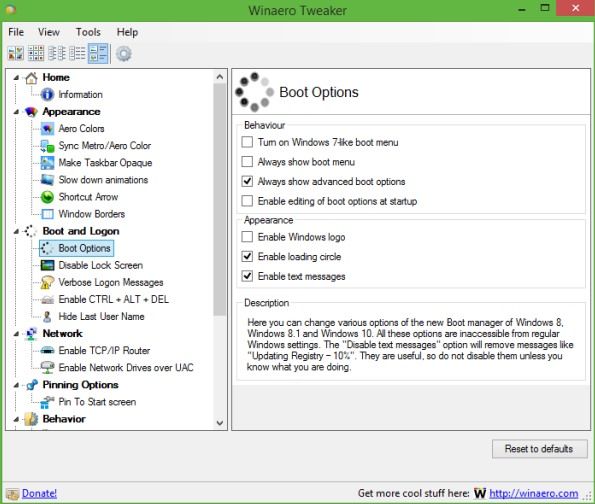
This is one of the best tools to customize Windows 10 user experience and also this is a freeware tool that works perfectly with Windows 10. Winaero Tweaker is a portable application and does not require to be installed. This is a universal tweaker software which supports Windows 7, Windows 8, Windows 8.1 and the Windows 10. You will find lots of options and tweaks that just keep on varying according to versions of Windows you are running on. So must give a try to this cool software.
#2 7+ Taskbar Tweaker
 7+ Taskbar Tweaker
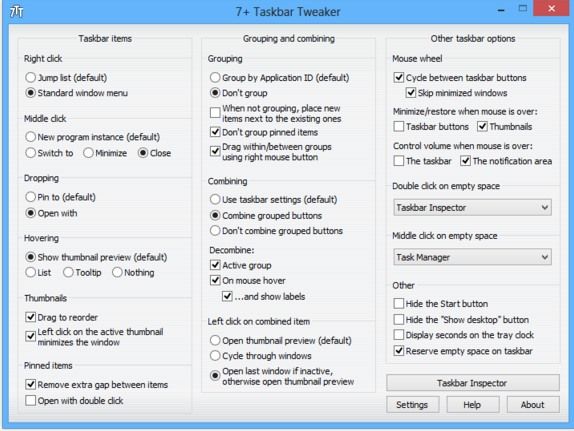
This is also the best tool to customize your taskbar according to your wish. 7+ Taskbar Tweaker allows you to configure various aspects of the Windows taskbar. Most of the configuration options it provides can’t be tweaked using the taskbar properties or the registry. The Tweaker is designed for Windows 7, Windows 8, Windows 8.1, and Windows 10. Must give a try to this cool tweak that will be going to give you a better user experience.
7+ Taskbar Tweaker
This is also the best tool to customize your taskbar according to your wish. 7+ Taskbar Tweaker allows you to configure various aspects of the Windows taskbar. Most of the configuration options it provides can’t be tweaked using the taskbar properties or the registry. The Tweaker is designed for Windows 7, Windows 8, Windows 8.1, and Windows 10. Must give a try to this cool tweak that will be going to give you a better user experience.
7+ Taskbar Tweaker
#3 Ultimate Windows Tweaker 4
 Ultimate Windows Tweaker 4
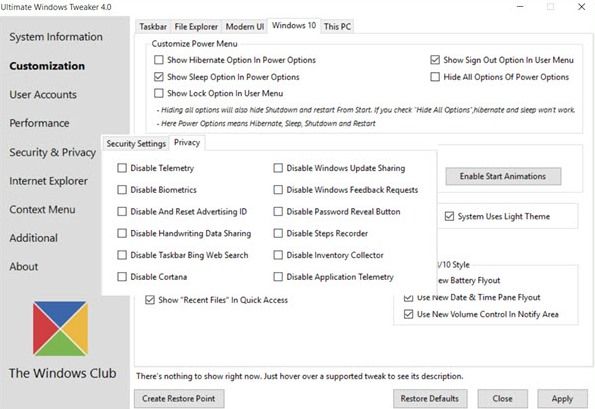
This tool is better than all other and works exactly same as its name indicates that it’s an ultimate tool that allows users to make lots of changes in Windows 10 according to wish. While you may be able to access all these via the Windows 10 Settings app, the Registry Editor or the Group Policy Editor, Ultimate Windows Tweaker makes things easier for you by offering all useful tweaks from its single UI. So must give a try to this tool and have a better UI in your Windows 10.
Ultimate Windows Tweaker 4
This tool is better than all other and works exactly same as its name indicates that it’s an ultimate tool that allows users to make lots of changes in Windows 10 according to wish. While you may be able to access all these via the Windows 10 Settings app, the Registry Editor or the Group Policy Editor, Ultimate Windows Tweaker makes things easier for you by offering all useful tweaks from its single UI. So must give a try to this tool and have a better UI in your Windows 10.
Ultimate Windows Tweaker 4
#4 Launchy
 Launchy
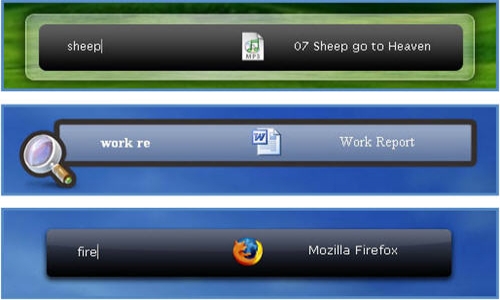
 is a free cross-platform utility designed to help you forget about your start menu, the icons on your desktop, and even your file manager. Launchy indexes the programs in your start menu and can launch your documents, project files, folders, and bookmarks with just a few keystrokes. Pressing ALT + SPACE will immediately trigger launchy, where you can type the name of any program or folder.
Launchy
Launchy is a free cross-platform utility designed to help you forget about your start menu, the icons on your desktop, and even your file manager. Launchy indexes the programs in your start menu and can launch your documents, project files, folders, and bookmarks with just a few keystrokes. Pressing ALT + SPACE will immediately trigger launchy, where you can type the name of any program or folder.
Launchy
#5 Okozo Desktop
 Okozo Desktop
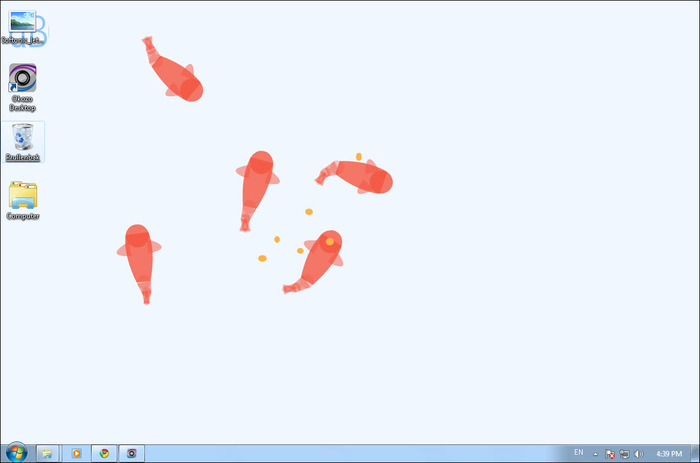
Okozo is a website that lets you download the bunch of live wallpapers. The wallpapers are beautiful and can help you customize your Windows. You can download live wallpapers that shows time or can play music or can do various another tasks. You can download its client for Windows and can get newly added wallpapers from the software itself.
Okozo Desktop
Okozo is a website that lets you download the bunch of live wallpapers. The wallpapers are beautiful and can help you customize your Windows. You can download live wallpapers that shows time or can play music or can do various another tasks. You can download its client for Windows and can get newly added wallpapers from the software itself.
Okozo Desktop
#6 Rainmeter
 Rainmeter
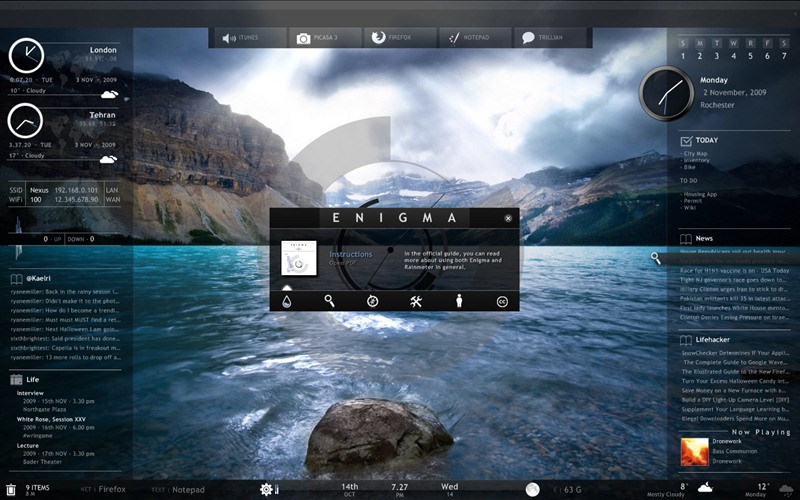
 displays customizable skins, like memory and battery power, RSS feeds and weather forecasts, right on your desktop. Many skins are even functional: they can record your notes and to-do lists, launch your favorite applications, and control your media player – all in a clean, unobtrusive interface that you can rearrange and customize to your liking. Rainmeter is at once an application and a toolkit. You are only limited by your imagination and creativity.
Rainmeter
Rainmeter displays customizable skins, like memory and battery power, RSS feeds and weather forecasts, right on your desktop. Many skins are even functional: they can record your notes and to-do lists, launch your favorite applications, and control your media player – all in a clean, unobtrusive interface that you can rearrange and customize to your liking. Rainmeter is at once an application and a toolkit. You are only limited by your imagination and creativity.
Rainmeter
#7 MyFolders
 My Folders
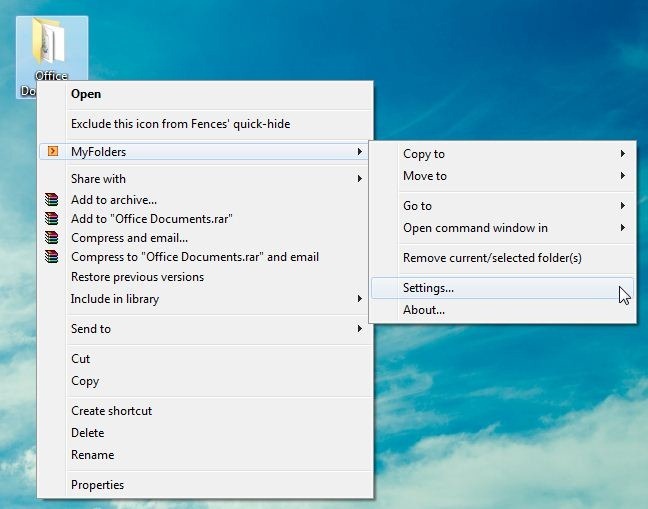
The MyFolders Windows Explorer Shell Extension saves your time by placing any folder at your fingertips. Copy/Move files or Open any folder with just a few clicks! You can get a MyFolders option listed on a right-click menu with several convenient utilities to access folders. You will get options like the Copy to, Move to, Go to, Open command window.
My Folders
The MyFolders Windows Explorer Shell Extension saves your time by placing any folder at your fingertips. Copy/Move files or Open any folder with just a few clicks! You can get a MyFolders option listed on a right-click menu with several convenient utilities to access folders. You will get options like the Copy to, Move to, Go to, Open command window.
My Folders
#8 Fences
 Fences
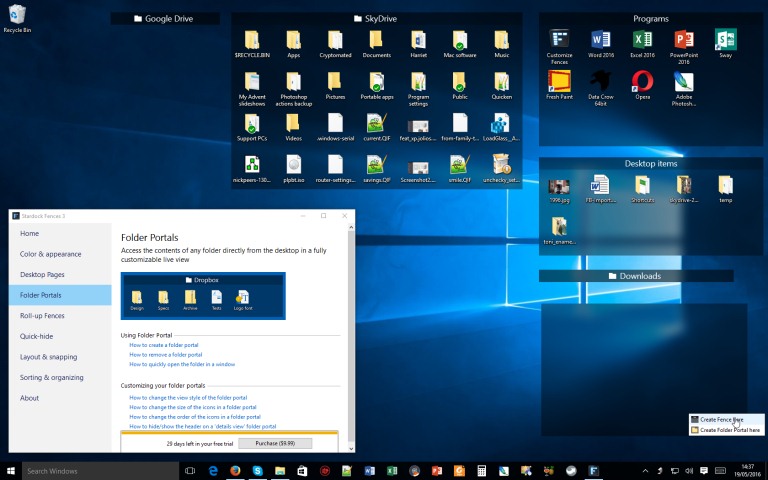
 are very similar to Android group feature. As we know, Android does provide a feature to group the apps and folders on the home screen for easy access. Fences act the same, it helps you create groups of apps and folder on your computer. You can even customize your created groups on your desktop with different icons. This app is great for those who have lots of software installed on their computer.
Fences
Fences are very similar to Android group feature. As we know, Android does provide a feature to group the apps and folders on the home screen for easy access. Fences act the same, it helps you create groups of apps and folder on your computer. You can even customize your created groups on your desktop with different icons. This app is great for those who have lots of software installed on their computer.
Fences
#9 Aero Glass
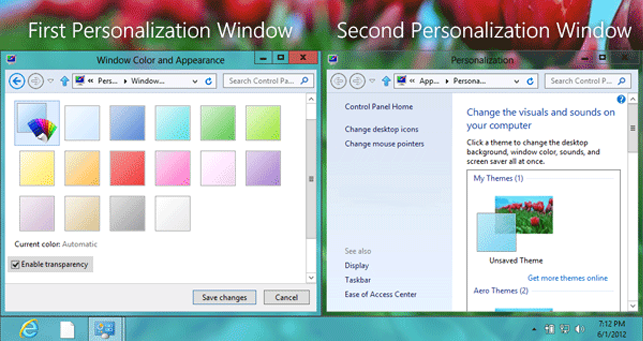 Aero Glass
Well, if you want to enjoy Aero Glass transparency feature that is available on Windows 7, 8 and 8.1, then you will love this tool. Aero glass transparency feature is missing in Windows 10. So, this tool will help you bring back the Aero glass to window border with blur effects.
Aero Glass
Well, if you want to enjoy Aero Glass transparency feature that is available on Windows 7, 8 and 8.1, then you will love this tool. Aero glass transparency feature is missing in Windows 10. So, this tool will help you bring back the Aero glass to window border with blur effects.
Aero Glass
#10 Login Screen Background Changer
 Login Screen Background Changer
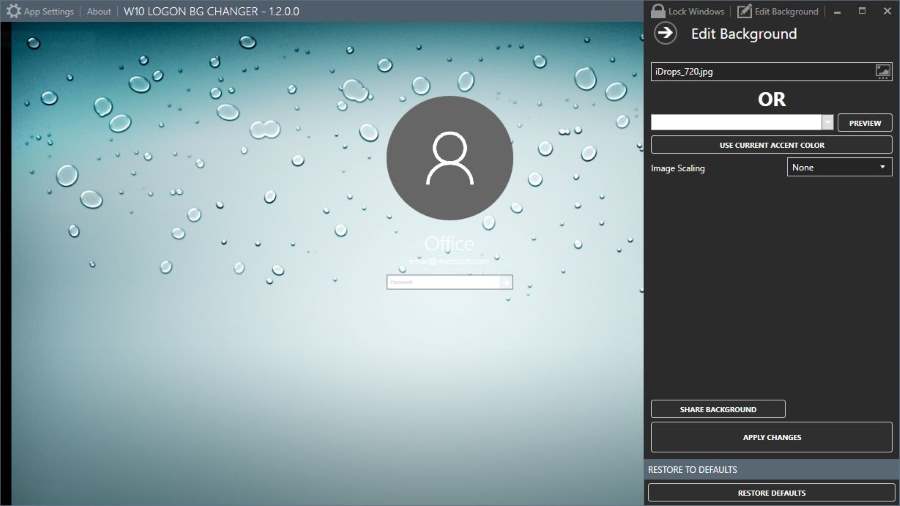
Well, if you don’t like the default desktop wallpaper as login screen background then you will love this tool. This tool lets you set a custom image of your own as a login screen background. This tool is free of cost and will help you to replace the default login screen background image with a solid color.
Login Screen Background Changer
Well, if you don’t like the default desktop wallpaper as login screen background then you will love this tool. This tool lets you set a custom image of your own as a login screen background. This tool is free of cost and will help you to replace the default login screen background image with a solid color.
Login Screen Background Changer
#11 CustomizerGod
 CustomizerGod
This is an awesome tool which lets you customize your Windows 10 desktop. You can customize almost everything using this mini too. You can make your start button look different. You can use this tool for editing any image resources
CustomizerGod
This is an awesome tool which lets you customize your Windows 10 desktop. You can customize almost everything using this mini too. You can make your start button look different. You can use this tool for editing any image resources
CustomizerGod
#12 TileCreator
 TileCreator
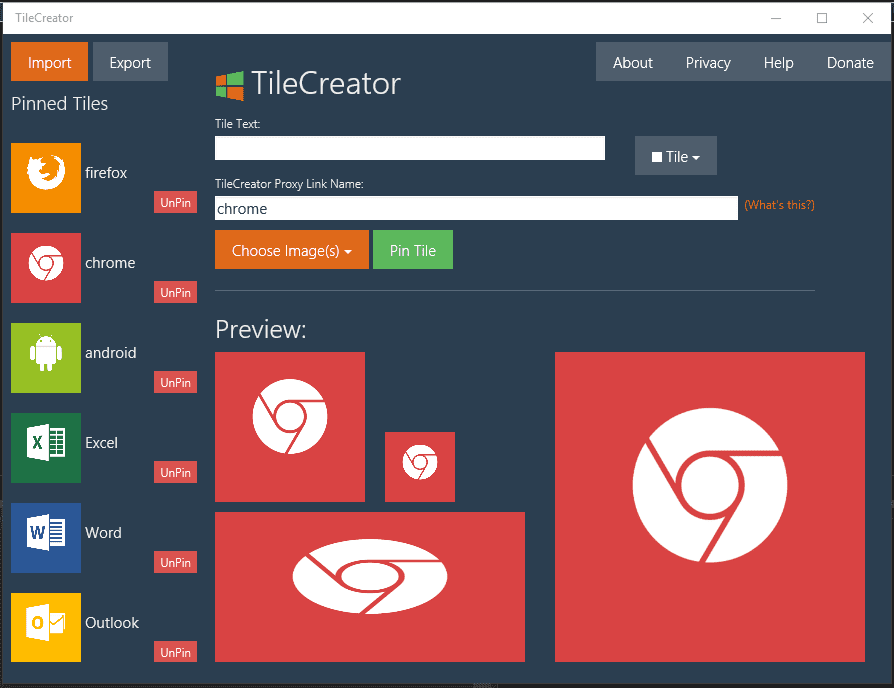
This is an awesome tool which you can download from Microsoft store. This tool will be very helpful if you want to change the visual appearance of tiles on the Start Menu. This tool will let you customize the text, background color and image of any app’s tile.
TileCreator
This is an awesome tool which you can download from Microsoft store. This tool will be very helpful if you want to change the visual appearance of tiles on the Start Menu. This tool will let you customize the text, background color and image of any app’s tile.
TileCreator
#13 Folder Marker
 Folder Marker
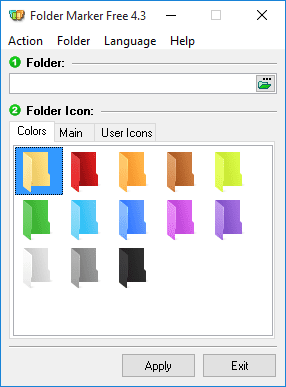
This tool lets you add colors to your windows folder. Users just need to install the tool and then right click on any folder to make their icons look beautiful. This tool can assign icons to a folder from file formats ICO, ICL, EXE, DLL, CPL or BMP.
Folder Marker
This tool lets you add colors to your windows folder. Users just need to install the tool and then right click on any folder to make their icons look beautiful. This tool can assign icons to a folder from file formats ICO, ICL, EXE, DLL, CPL or BMP.
Folder Marker
#14 Rocket Dock
 Rocket Dock
This is actually a launcher. This tool lets you pin shortcuts anywhere on the desktop. You can add shortcuts for apps, programs and even folders in a small sized dock using Rocket dock tool.
Rocket Dock
This is actually a launcher. This tool lets you pin shortcuts anywhere on the desktop. You can add shortcuts for apps, programs and even folders in a small sized dock using Rocket dock tool.
Rocket Dock
#15 Start10
 Start10
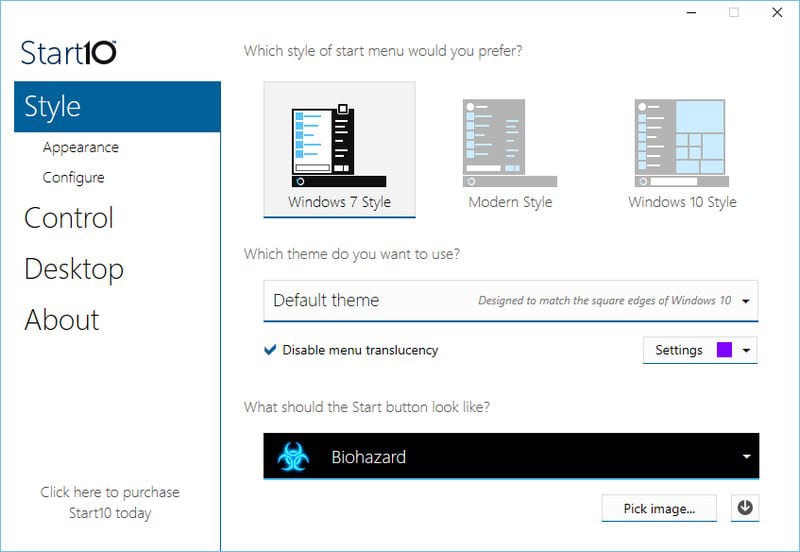
If you want to customize your Window 10 start menu then Start10 will be a perfect choice. This tool changes the look of your default Start menu and lets you choose your background and color and use different start menu themes.
Start10
If you want to customize your Window 10 start menu then Start10 will be a perfect choice. This tool changes the look of your default Start menu and lets you choose your background and color and use different start menu themes.
Start10
#16 TweakNow PowerPack
 TweakNow PowerPack
Well, TweakNow Powerpack is something different than all other listed above, this mini tool is designed to help you alter the way your system works rather than the way it looks. The tool actually let user fine-tune every detail of Windows 10. With the help of this app, you can change the graphics feature of your Windows 10 computer.
TweakNow PowerPack
Well, TweakNow Powerpack is something different than all other listed above, this mini tool is designed to help you alter the way your system works rather than the way it looks. The tool actually let user fine-tune every detail of Windows 10. With the help of this app, you can change the graphics feature of your Windows 10 computer.
TweakNow PowerPack
#17 WindowBlinds
 WindowBlinds
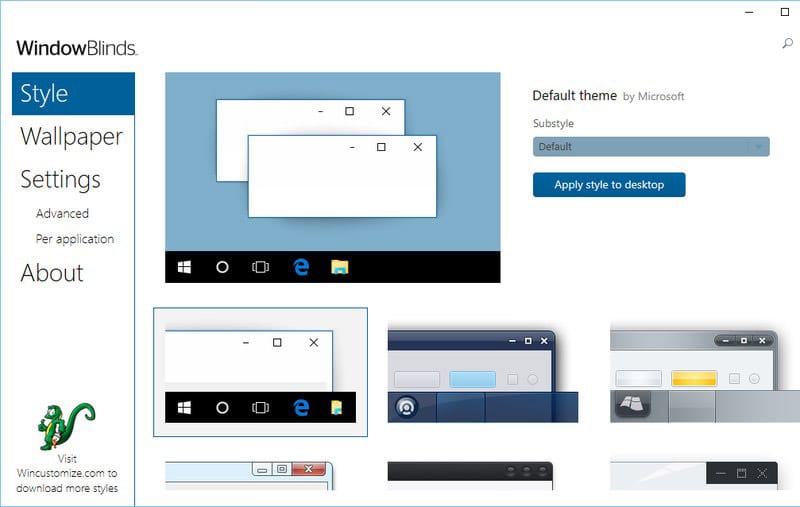
Well, WindowsBlinds comes from the creators of Start10. This mini tool allows you to set custom skins for Windows 10 operating system. The tool actually allows you to set custom skins for Windows 10 computer and guess what? These skins are so amazing that it can completely change the look of your Windows, buttons, applications, fonts, icons and more.
So above are the Best Tools To Customize Windows 10. With these tools, you can easily customize Windows 10 and can have the better graphical user interface. So must try out all these tools. Hope you like these tools, keep on sharing with others too. Also, share your experience with these tools with us in a comment box below.
WindowBlinds
Well, WindowsBlinds comes from the creators of Start10. This mini tool allows you to set custom skins for Windows 10 operating system. The tool actually allows you to set custom skins for Windows 10 computer and guess what? These skins are so amazing that it can completely change the look of your Windows, buttons, applications, fonts, icons and more.
So above are the Best Tools To Customize Windows 10. With these tools, you can easily customize Windows 10 and can have the better graphical user interface. So must try out all these tools. Hope you like these tools, keep on sharing with others too. Also, share your experience with these tools with us in a comment box below.
WindowBlinds


